Limited offer: Buy 2 beats, get 1 for free 🔥 Ends in:

Blog - Crusader Beats - Page 2

Analog Obsession – High-Quality Analog-Style Plugins for Free

In a world where premium plugins can cost hundreds of dollars, finding high-quality tools for free can feel like a rare opportunity. One name that consistently stands out in the audio community is Analog Obsession—a developer known for creating powerful, analog-inspired plugins that are available at no cost.

In this article, we’ll explore what Analog Obsession is, what it offers, and why it has become so popular among producers and mixing engineers.


What Is Analog Obsession?

Analog Obsession is an independent plugin developer focused on creating analog-modeled audio plugins. Their tools are primarily available in VST, VST3, and AU formats and are compatible with most major DAWs.

The plugins are typically distributed for free, with optional support via platforms like Patreon—making them accessible to beginners and professionals alike.


What Makes Analog Obsession Unique?

1. Free but Professional Quality

Unlike many free plugins, Analog Obsession tools are:

  • High-quality
  • Musically tuned
  • Suitable for professional use

Many producers use them alongside premium plugins in real projects.


2. Focus on Analog Character

The plugins are inspired by classic analog gear:

  • Vintage compressors
  • Analog-style EQs
  • Tape saturation
  • Channel strips

They are designed to add warmth, color, and musicality rather than just clean processing.


3. Simple and Intuitive Interfaces

Analog Obsession plugins often feature:

  • Minimal controls
  • Hardware-inspired layouts
  • Fast workflow

This makes them great for beginners who want to avoid overly complex interfaces.


Popular Analog Obsession Plugins

Here are some widely used tools from the collection:

Compressors

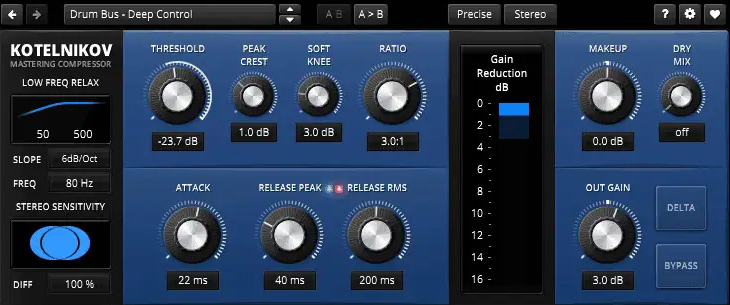
  • LA-LA – optical-style compressor
  • FETISH – fast FET compressor
  • BUSTER – bus compressor

Great for vocals, drums, and mix buses.


Equalizers

  • SSQ – channel EQ inspired by classic consoles
  • Rare – tube-style EQ
  • LOADED – versatile EQ with character

Perfect for shaping tone and adding warmth.


Saturation & Color

  • TAPE – tape-style saturation
  • BritChannel – channel strip with analog vibe
  • PreBOX – preamp-style coloration

These plugins add depth and harmonic richness.


Sound Quality and Use Cases

Analog Obsession plugins are often praised for:

  • Smooth, musical processing
  • Subtle analog coloration
  • Easy-to-use controls

They are especially useful for:

  • Vocals
  • Drums
  • Mix bus processing
  • Lo-fi and vintage-style production

Pros and Cons

✅ Pros

  • Completely free (optional support model)
  • High-quality analog-style sound
  • Lightweight and efficient
  • Beginner-friendly interfaces

❌ Cons

  • Less advanced features than premium plugins
  • Limited documentation
  • Interface design may feel inconsistent across plugins

Analog Obsession vs Paid Plugins

While paid plugins from companies like Waves, UAD, or FabFilter offer:

  • Advanced features
  • Extensive support
  • Polished UI

Analog Obsession competes by offering:

  • Simplicity
  • Character
  • Accessibility

For many producers, it’s an excellent starting point—or even a long-term solution.


Why Beginners Should Try Analog Obsession

If you’re just starting out:

  • You can build a full mixing toolkit for free
  • You learn analog-style workflows
  • You avoid plugin overload

It’s a great way to focus on skills instead of spending money.


Analog Obsession proves that you don’t need expensive plugins to achieve professional results. With a wide range of analog-inspired tools, simple interfaces, and high-quality sound, it’s one of the best free plugin collections available today.

Whether you’re a beginner building your first setup or an experienced producer looking for character tools, Analog Obsession is definitely worth exploring.

Audio Interface – How to Choose the Right Model

An audio interface is one of the most important pieces of equipment in any home studio. It connects your microphones, instruments, and speakers to your computer—and directly affects your recording quality, latency, and workflow.

But with so many options available, choosing the right interface can feel confusing. In this guide, you’ll learn what an audio interface does, what features matter, and how to choose the right model for your needs.


What Is an Audio Interface?

An audio interface is a device that converts:

  • Analog signals → Digital (for recording into your DAW)
  • Digital signals → Analog (for playback through speakers/headphones)

In simple terms, it acts as the bridge between your gear and your computer.


Why You Need an Audio Interface

While computers have built-in sound cards, they are not designed for music production.

An audio interface provides:

  • Higher audio quality
  • Lower latency
  • Better recording inputs (XLR, instrument inputs)
  • Phantom power for microphones
  • Stable drivers for DAWs

Key Features to Consider

1. Number of Inputs and Outputs

Think about what you need to record.

  • 1–2 inputs → vocals, guitar, basic setup
  • 4+ inputs → recording multiple instruments
  • 8+ inputs → bands, drums, advanced setups

Choose based on your workflow—not future overkill.


2. Audio Quality (Bit Depth & Sample Rate)

Most modern interfaces support:

  • 24-bit depth
  • 44.1–192 kHz sample rate

For beginners, 24-bit / 44.1 or 48 kHz is more than enough.


3. Preamps

Preamps amplify microphone signals.

Look for:

  • Clean gain
  • Low noise
  • Enough headroom

Good preamps make a noticeable difference in vocal recordings.


4. Latency Performance

Latency is the delay between input and output.

Low latency is crucial for:

  • Recording vocals
  • Playing MIDI instruments
  • Monitoring in real time

Interfaces with good drivers provide smoother performance.


5. Connectivity (USB, USB-C, Thunderbolt)

  • USB / USB-C → most common and sufficient
  • Thunderbolt → lower latency, higher performance

For most users, USB-C interfaces are ideal.


6. Phantom Power

Required for condenser microphones.

Make sure your interface includes:

  • 48V phantom power (usually standard)

7. Headphone Output and Monitoring

Look for:

  • Dedicated headphone volume control
  • Direct monitoring (zero latency)
  • Multiple outputs if needed

Monitoring flexibility improves workflow.


Popular Beginner-Friendly Audio Interfaces

Here are some widely used models:

Focusrite Scarlett 2i2

  • Great for beginners
  • Clean preamps
  • Reliable performance

Audient iD14

  • High-quality preamps
  • Solid build
  • Slightly more premium option

Universal Audio Volt 2

  • Vintage-style sound mode
  • Easy to use
  • Great for vocals and instruments

PreSonus AudioBox USB 96

  • Budget-friendly
  • Simple setup
  • Good for beginners

Choosing Based on Your Needs

Beginner Producer

  • 2 inputs
  • USB interface
  • Simple controls

Singer-Songwriter

  • 2 inputs (mic + instrument)
  • Good preamps
  • Headphone monitoring

Advanced Producer

  • Multiple inputs/outputs
  • MIDI connectivity
  • Expandability

Recording Bands

  • 8+ inputs
  • External preamps or ADAT support

Common Mistakes When Choosing an Interface

  • Buying too many inputs “just in case”
  • Ignoring driver stability
  • Overpaying for features you won’t use
  • Choosing based only on brand

Focus on your actual workflow.


Do You Need an Expensive Interface?

Not necessarily.

Modern budget interfaces already offer:

  • Excellent audio quality
  • Clean recordings
  • Low noise

Skill and technique matter far more than price.


Choosing the right audio interface is about understanding your needs and keeping things simple. A good interface improves your recordings, reduces frustration, and helps you focus on making music.

Start with what you need today—and upgrade when your workflow demands it.

Akai MPC – History, Models, and Specifications

Few pieces of music equipment have had as much impact on modern music as the Akai MPC (Music Production Center). From shaping hip-hop in the late ’80s to powering modern standalone production workflows, the MPC has become a legendary tool used by producers worldwide.

In this article, we’ll explore the history of the Akai MPC, its most important models, and the features that made it an industry standard.


What Is the Akai MPC?

The Akai MPC is a hardware sampler and sequencer that allows users to:

  • Chop and manipulate audio samples
  • Program drum patterns using pads
  • Sequence full tracks
  • Produce complete songs without a computer

Its signature 16 velocity-sensitive pads and intuitive workflow made it a favorite among beatmakers.


The Origins – Late 1980s Revolution

The MPC story begins in 1988 with the release of the Akai MPC60, designed by legendary engineer Roger Linn.

Key Innovations:

  • Built-in sequencer + sampler
  • Swing (groove) function
  • Pad-based performance

The MPC60 introduced a new way of making music—more hands-on, rhythmic, and human compared to traditional sequencers.


The Golden Era of MPC (1990s – Early 2000s)

During the 1990s, MPC units became the backbone of hip-hop production.

Akai MPC3000

  • Improved sound quality
  • Faster workflow
  • Considered one of the best-sounding MPCs ever

Widely used by producers like J Dilla and DJ Premier.


Akai MPC2000 & Akai MPC2000XL

  • More affordable
  • Expanded memory
  • Improved editing features

These models brought MPCs to a wider audience and became studio staples.


The Rise of Digital Integration (2000s)

As computers became more powerful, MPCs evolved.

Akai MPC1000

  • Compact and portable
  • Affordable entry point
  • Popular among bedroom producers

Akai MPC2500

  • Larger screen
  • More connectivity
  • Advanced sequencing options

Akai MPC4000

  • High-end model
  • Advanced synthesis features
  • Hard drive support

Modern Era – Standalone Power (2010s – Present)

Akai redefined the MPC with standalone systems that combine hardware and software.

Akai MPC Live

  • Battery-powered
  • Touchscreen interface
  • Standalone DAW-like workflow

Akai MPC X

  • Large screen
  • Multiple I/O options
  • Studio centerpiece

Akai MPC One

  • Affordable
  • Powerful
  • Ideal for modern producers

Akai MPC Key 61

  • Built-in keyboard
  • Advanced instruments
  • Combines MPC workflow with traditional playing

Key Features Across MPC Models

Despite evolution, core MPC features remain consistent:

🎛️ Pads

  • 16 velocity-sensitive pads
  • Real-time performance
  • Finger drumming

🎚️ Sequencer

  • Step and real-time recording
  • Swing/groove control
  • Pattern-based workflow

🎧 Sampling

  • Chop samples into slices
  • Time-stretch and pitch-shift
  • Resample internally

🖥️ Standalone Capability (Modern MPCs)

  • No computer required
  • Built-in instruments and effects
  • Touchscreen interface

MPC Workflow – Why It’s Unique

The MPC workflow is different from traditional DAWs:

  • Pattern-based sequencing
  • Loop-focused creation
  • Hands-on performance
  • Minimal mouse interaction

This makes it especially popular for:

  • Hip-hop
  • Trap
  • Lo-fi
  • Electronic music
  • Live performance

Technical Specifications Overview

While specs vary by model, here are common features:

Older MPCs:

  • Limited RAM (2–128 MB)
  • Floppy disks / CF cards
  • Basic displays

Modern MPCs:

  • Multi-core processors
  • GBs of RAM
  • Touchscreens
  • USB, MIDI, CV/Gate connectivity
  • Internal storage + SSD support

MPC vs DAW – Hardware vs Software

MPC Advantages:

  • Tactile workflow
  • Focused environment
  • Creative limitations

DAW Advantages:

  • Unlimited tracks
  • Advanced editing
  • Plugin ecosystem

Many producers use both together.


Why the MPC Is Still Relevant

Even today, the MPC remains influential because:

  • It encourages creativity through limitations
  • It offers a unique groove and timing feel
  • It bridges performance and production

Modern MPCs combine the best of both worlds—hardware feel with software power.


The Akai MPC is more than just a piece of gear—it’s a cornerstone of modern music production. From the Akai MPC60 to today’s standalone systems, it has shaped how music is created, performed, and experienced.

Whether you’re a beginner or an experienced producer, understanding the MPC means understanding a huge part of music production history.

Best VST Plugins for Beginner Producers

Starting your journey in music production can feel overwhelming—especially when it comes to choosing the right plugins. With thousands of VST instruments and effects available, beginners often don’t know where to start.

The truth is: you don’t need dozens of plugins. You just need a small, reliable set of tools that cover the essentials—sound design, mixing, and creative effects.

In this article, we’ll break down the best VST plugins for beginners, explain what they do, and help you build a solid starting toolkit.


What Plugins Do Beginners Actually Need?

Before downloading anything, understand the core categories:

  • Synth (instrument) – for melodies, bass, chords
  • EQ – for shaping frequencies
  • Compressor – for controlling dynamics
  • Reverb/Delay – for space and depth
  • Saturation/Distortion – for character

A few well-chosen plugins in these categories are enough to make professional music.


Best Free Synth VST for Beginners

Vital (Wavetable Synth)

Vital is one of the most popular free synths available today.

Why it’s great:

  • Modern wavetable synthesis
  • Visual and beginner-friendly interface
  • Powerful modulation system
  • Huge preset library

Many producers consider it a free alternative to premium synths like Serum. It’s widely recommended as a starting point for sound design

.


Best Free Instrument Plugin

LABS (by Spitfire Audio)

LABS offers high-quality sampled instruments.

What you get:

  • Pianos, strings, guitars
  • Cinematic textures
  • Minimal and easy-to-use interface

It’s perfect for beginners who want realistic sounds without complexity

.


Best Free EQ Plugin

TDR Nova (Dynamic EQ)

TDR Nova is a powerful yet beginner-friendly EQ.

Features:

  • Parametric EQ + dynamic processing
  • Clean, transparent sound
  • Great for mixing and mastering

It’s often recommended as a must-have starting EQ

.


Best Free Compressor

Klanghelm DC1A

A simple but effective compressor.

Why beginners love it:

  • Easy controls
  • Great sound quality
  • Works on vocals, drums, and instruments

It helps you understand compression without overwhelming settings

.


Best Free Reverb & Delay

Valhalla Supermassive

A legendary free plugin for space effects.

What it offers:

  • Massive reverbs and delays
  • Easy interface
  • Great for ambient and modern music

It’s widely considered one of the best free effects plugins available

.


Best Free Saturation Plugin

IVGI2 (by Klanghelm)

Key features:

  • Warm analog-style saturation
  • Subtle or aggressive processing
  • Works on drums, bass, and mix bus

Saturation adds character and energy to otherwise clean sounds

.


Optional: Paid Plugins for Beginners

If you want to invest a little, here are beginner-friendly options:

Entry-Level Plugin Bundle:

Essentials Bundle

A beginner-friendly bundle covering core mixing and production tools in one package.

Creative Reverb Plugin

Denise Audio Perfect Room 2

A high-quality algorithmic reverb plugin for adding realistic space and depth.

Spectral & Analysis Tool

Voxengo SPAN Plus

A professional spectrum analyzer for visualizing frequencies during mixing.


Tips for Choosing Your First Plugins

  • Start with free tools first
  • Learn each plugin deeply before adding more
  • Avoid downloading too many plugins at once
  • Focus on workflow, not gear

Too many options slow you down—simplicity speeds you up.


Common Beginner Mistakes

  • Installing hundreds of plugins
  • Ignoring stock DAW plugins
  • Chasing “pro sound” instead of learning basics
  • Not finishing tracks

Remember: plugins don’t make good music—you do.


The best VST plugins for beginners are not the most expensive ones—they’re the ones that are simple, versatile, and well-understood. With just a few tools like Vital, TDR Nova, and Valhalla Supermassive, you can already produce professional-quality music.

Start small, learn deeply, and build your toolkit over time.

Creating Beats – Step by Step

Beat-making is one of the most exciting parts of music production. Whether you’re producing hip-hop, trap, pop, lo-fi, or electronic music, a strong beat forms the foundation of the track. But great beats don’t happen by accident—they’re built with intention, structure, and groove.

In this article, we’ll walk through how to create a beat step by step, from the first idea to a polished groove.


Step 1: Choose the Right Tempo and Style

Before adding any sounds, define the direction.

Ask yourself:

  • What genre am I producing?
  • What mood should the beat have?
  • Is it slow and relaxed or fast and aggressive?

Typical BPM ranges:

  • Hip-hop: 70–100 BPM
  • Trap: 130–160 BPM
  • Lo-fi: 60–90 BPM
  • House: 120–128 BPM

The tempo sets the emotional tone of your beat.


Step 2: Start With the Drums

Drums are the backbone of most beats.

Build a basic drum pattern:

  • Kick
  • Snare or clap
  • Hi-hats

Keep it simple at first. Focus on groove and rhythm before adding complexity.


Step 3: Create a Strong Kick and Snare Relationship

The kick and snare define the pulse.

Tips:

  • Place the snare on beats 2 and 4 (for most hip-hop/pop styles)
  • Experiment with kick placement for groove
  • Adjust velocity for human feel

Groove is more important than complexity.


Step 4: Add Hi-Hats and Percussion

Hi-hats bring movement.

Try:

  • Straight 1/8 or 1/16 patterns
  • Velocity variation
  • Rolls and triplets
  • Slight timing shifts

Small rhythmic details make beats feel alive.


Step 5: Add a Bassline

Bass connects rhythm and harmony.

Tips:

  • Follow the root notes of your chords
  • Keep bass rhythm aligned with the kick
  • Leave space—don’t overcrowd

In genres like trap, 808 bass often plays both rhythmic and melodic roles.


Step 6: Add Melody or Chords

Once the rhythm section is solid, add harmony.

Options:

  • Simple chord progression
  • Piano melody
  • Synth lead
  • Sample flip

Keep it catchy and memorable. Simplicity often wins.


Step 7: Layer and Enhance Sounds

Professional beats often use layering.

Examples:

  • Layered snares or claps
  • Extra percussion for texture
  • Subtle background pads

Each layer should add something unique.


Step 8: Arrange the Beat

Now structure your beat into sections:

Typical structure:

  • Intro
  • Verse
  • Hook/Chorus
  • Verse
  • Outro

Create variation between sections by muting or adding elements.


Step 9: Basic Mixing

Before finishing:

  • Balance levels
  • Remove unnecessary low frequencies
  • Add light compression if needed
  • Use subtle reverb for depth

Good balance makes a beat sound professional.


Step 10: Add Transitions and Details

Final touches matter.

Consider:

  • Risers and impacts
  • Reverse sounds
  • Drop-outs before hooks
  • Automation for energy

Details make your beat dynamic and engaging.


Common Beginner Mistakes

  • Overcomplicating drum patterns
  • Using too many sounds
  • Ignoring groove
  • Poor level balance
  • Not finishing the arrangement

Focus on clarity and rhythm first.


Creating beats is a combination of rhythm, emotion, and structure. By following a step-by-step process—starting with drums, building groove, adding harmony, and arranging with intention—you can consistently create strong and professional-sounding beats.

Practice regularly, experiment with styles, and most importantly—finish your beats.

How to Create Powerful Drops in Electronic Music

In electronic music, the drop is the moment everyone waits for. It’s the payoff after the build-up—the explosion of energy that makes people move. Whether you produce EDM, dubstep, house, trap, or drum & bass, learning how to craft powerful drops is essential.

But big drops aren’t just about loud kicks and heavy bass. They’re about contrast, tension, impact, and smart arrangement. In this article, we’ll break down how to create drops that truly hit.


1. A Powerful Drop Starts With Contrast

The strength of a drop depends on what happens before it.

Why contrast matters:

  • Loud feels louder after quiet
  • Heavy feels heavier after light
  • Full feels bigger after minimal

Before your drop:

  • Remove low-end elements
  • Simplify drums
  • Use filtering to reduce brightness
  • Create space

The bigger the contrast, the stronger the impact.


2. Build Tension Before the Release

A drop without tension feels flat.

Effective tension tools:

  • Risers and white noise sweeps
  • Snare rolls or percussion builds
  • Filter automation (high-pass or low-pass sweeps)
  • Increasing reverb or delay
  • Pitch risers

Gradually increase intensity so the listener anticipates the drop.


3. Design a Strong Kick and Bass Foundation

The low-end defines the power of the drop.

Tips for heavy low-end:

  • Use a clean, punchy kick
  • Make sure kick and bass are not clashing
  • Sidechain bass to the kick
  • Keep sub frequencies mono

A tight and controlled low-end is more powerful than a muddy one.


4. Layer Sounds for Maximum Impact

Professional drops often use layered sounds.

Example layering:

  • Main lead or bass layer
  • Mid-range support layer
  • High-frequency texture layer
  • Impact or hit sample

Each layer should have a purpose and occupy a different frequency range.


5. Focus on Rhythm and Groove

Power isn’t only about volume—it’s about rhythm.

  • Use syncopation for excitement
  • Add rhythmic variation
  • Leave small gaps for groove
  • Avoid overfilling every beat

Groove makes drops feel energetic instead of chaotic.


6. Use Automation for Movement

Static sounds feel weak.

Automate:

  • Filter cutoff
  • Distortion amount
  • Reverb send levels
  • Stereo width
  • Pitch bends

Movement creates life and keeps the drop interesting.


7. Add Impact Sounds

Transitions into the drop matter just as much as the drop itself.

Use:

  • Downlifters
  • Reverse effects
  • Sub drops
  • Cymbal crashes
  • Silence before impact

Even a short half-beat of silence can dramatically increase punch.


8. Control Loudness and Dynamics

Over-limiting kills impact.

Tips:

  • Leave headroom before mastering
  • Avoid clipping
  • Preserve transient punch
  • Don’t squash everything with compression

Dynamic contrast is what makes drops feel explosive.


9. Keep It Simple and Memorable

Some of the biggest electronic drops are surprisingly simple.

Avoid:

  • Too many competing elements
  • Overly complex melodies
  • Cluttered arrangements

A clear, focused idea is stronger than chaos.


10. Test on Different Systems

A powerful drop should translate everywhere:

  • Studio monitors
  • Headphones
  • Car speakers
  • Club systems

Check low-end balance and clarity across playback systems.


Common Drop Mistakes

  • No contrast before the drop
  • Weak low-end
  • Overcrowded mix
  • Too much reverb
  • Lack of groove

Fixing these issues instantly improves impact.


Creating powerful drops in electronic music is about energy management, contrast, and smart sound design. When tension builds naturally and the drop delivers clarity, punch, and groove, the result is unforgettable.

Mastering drops takes practice—but with attention to detail and intentional arrangement, you can turn good ideas into explosive moments.

The Art of Sound Design: From Idea to Finished Preset

Sound design is one of the most creative and rewarding aspects of music production. Instead of relying solely on factory presets, designing your own sounds allows you to develop a unique sonic identity and gain a deeper understanding of synthesis. But sound design is not about randomly turning knobs—it’s a structured creative process.

In this article, we’ll walk through the sound design journey, from the initial idea to a polished, reusable preset.


What Is Sound Design?

Sound design is the process of creating, shaping, and refining sounds using synthesis, sampling, and effects. It applies to:

  • Synth presets
  • Bass sounds
  • Leads and pads
  • FX and textures
  • Percussion and impacts

Good sound design balances creativity and intention.


Step 1: Start With a Clear Idea

Every good sound starts with a concept.

Ask yourself:

  • What role will this sound play? (bass, lead, pad, FX)
  • What emotion or energy should it convey?
  • Is it aggressive, soft, dark, bright, organic, or digital?

Having a clear goal prevents endless tweaking and keeps the process focused.


Step 2: Choose the Right Synthesis Method

Different ideas call for different tools.

Common synthesis methods:

  • Subtractive – great for classic basses and leads
  • Wavetable – ideal for modern, evolving sounds
  • FM – perfect for complex, metallic tones
  • Additive – useful for harmonic control
  • Granular – excellent for textures and atmospheres

Choosing the right method early saves time later.


Step 3: Build the Core Sound

Start simple.

Focus on:

  • Oscillator selection
  • Basic waveform choice
  • Initial pitch and tuning

At this stage, ignore effects. A strong sound should work even when dry.


Step 4: Shape the Sound Over Time

Movement is what makes sounds feel alive.

Use:

  • Envelopes for volume, filter, or pitch changes
  • LFOs for rhythmic or evolving modulation
  • Velocity and aftertouch for expressive control

Even subtle modulation can dramatically improve musicality.


Step 5: Refine With Filters and EQ

Filters define the character of a sound.

Tips:

  • Use low-pass filters to control brightness
  • Add resonance for character
  • Remove unnecessary frequencies

EQ should enhance clarity, not compensate for weak sound design.


Step 6: Add Effects With Purpose

Effects should support the sound—not replace good design.

Common effects:

  • Saturation for harmonics
  • Chorus for width
  • Delay and reverb for space
  • Distortion for aggression

Add effects gradually and always check the sound without them.


Step 7: Test the Sound in Context

A sound rarely exists on its own.

Test your preset:

  • In a full mix
  • At different pitches
  • With different velocities
  • In mono and stereo

This ensures the sound is practical and versatile.


Step 8: Optimize and Clean Up

Before saving the preset:

  • Remove unnecessary modulation
  • Adjust output levels
  • Set sensible default macro controls
  • Name and categorize the preset clearly

A clean preset is easier to reuse and share.


Step 9: Save and Organize Your Preset

Good organization saves time.

Best practices:

  • Use consistent naming
  • Add tags or descriptions
  • Group presets by type or genre

Over time, your personal preset library becomes a powerful creative resource.


Common Sound Design Mistakes

  • Starting without a clear goal
  • Overusing effects
  • Ignoring gain staging
  • Designing sounds only in solo
  • Never finishing or saving presets

Awareness of these mistakes speeds up improvement.


Sound Design Is a Skill, Not a Trick

Great sound design comes from:

  • Experimentation
  • Critical listening
  • Repetition and practice

Every preset you finish teaches you something new.


The art of sound design lies in transforming an abstract idea into a functional, musical sound. By working step by step—from concept to final preset—you gain control over your tools and develop a unique sonic signature.

Sound design is not about perfection. It’s about exploration, intention, and creativity.

Cardinal VST – Modular Synthesis Without Limits

Modular synthesis has long been associated with complex hardware setups and steep learning curves. Thanks to modern software, however, the power of modular systems is now accessible to anyone with a DAW. Cardinal VST is one of the most exciting tools in this space—an open-source, modular synthesizer plugin that brings the world of virtual modular synthesis directly into your music production workflow.

In this article, we’ll explore what Cardinal VST is, how it works, and why it has become so popular among experimental producers and sound designers.


What Is Cardinal VST?

Cardinal is a free, open-source modular synthesizer plugin based on the technology of VCV Rack. It runs as a VST, AU, LV2, and standalone application, allowing full integration with most modern DAWs.

Unlike traditional synthesizers with fixed signal paths, Cardinal lets you build your own instruments and effects from individual modules—just like a real modular synth.


Open-Source and Community-Driven

One of Cardinal’s biggest strengths is that it is completely open-source.

This means:

  • No license fees
  • Transparent development
  • Community-created modules
  • Continuous improvement

Cardinal includes a large collection of free modules, many inspired by classic Eurorack designs.


True Modular Workflow

Cardinal follows the modular philosophy:

  • No fixed signal flow
  • Patch cables connect everything
  • Audio and control signals are treated equally

You can build:

  • Synth voices
  • Sequencers
  • Effects processors
  • Generative music systems

The only real limit is your creativity—and CPU power.


Integration With Your DAW

As a VST plugin, Cardinal integrates smoothly into DAW-based workflows.

Key integration features:

  • Tempo sync with the host DAW
  • MIDI input and output
  • Audio routing to and from tracks
  • Automation support

This makes Cardinal suitable not only for experimentation, but also for serious production work.


Sound Design and Creative Possibilities

Cardinal excels in:

  • Experimental sound design
  • Ambient and drone music
  • Techno and electronic genres
  • Generative and algorithmic music
  • Educational synthesis exploration

Because everything is modular, you can create sounds and behaviors that are impossible in traditional synths.


Learning Curve and Usability

Modular synthesis can be intimidating at first.

What to expect:

  • Steep learning curve for beginners
  • Requires basic understanding of synthesis
  • Rewards experimentation and patience

However, Cardinal is an excellent learning tool for understanding:

  • Signal flow
  • Modulation
  • Audio-rate control
  • Advanced synthesis concepts

Performance and System Requirements

Because Cardinal runs complex modular patches:

  • CPU usage can increase quickly
  • Large patches require powerful systems
  • Efficient patch design is important

That said, performance is generally stable, especially when used thoughtfully.


Pros and Cons

Pros

  • Free and open-source
  • True modular flexibility
  • Large selection of modules
  • DAW integration
  • Ideal for experimentation and learning

Cons

  • Steep learning curve
  • No preset-driven workflow
  • Can be CPU-intensive
  • Not ideal for quick, conventional sounds

Cardinal vs Other Modular Plugins

Compared to other modular environments:

  • More open than many commercial options
  • Closer to real Eurorack workflows
  • Less polished UI than paid alternatives

Many producers use Cardinal alongside traditional synths for unique textures and ideas.


Cardinal VST is not a typical synthesizer—it’s a modular playground for sound exploration. It rewards curiosity, experimentation, and a willingness to learn. While it may not be the fastest tool for everyday production tasks, it offers creative freedom that few plugins can match.

If you’re interested in modular synthesis, experimental music, or deep sound design—and especially if you value open-source tools—Cardinal VST is absolutely worth exploring.

Rob Papen Blue 3 VSTi – A Powerful Hybrid Synthesizer for Modern Sound Design

Rob Papen has long been known for creating innovative and great-sounding virtual instruments. Blue 3, the latest evolution of the legendary BLUE synthesizer, takes hybrid synthesis to a new level. Combining FM, subtractive, wavetable, and sample-based synthesis, Blue 3 is designed for producers who want deep sound design possibilities without sacrificing usability.

In this article, we’ll explore what Rob Papen Blue 3 offers, how it works, and why it stands out among modern VST instruments.


What Is Rob Papen Blue 3?

Rob Papen Blue 3 is a hybrid software synthesizer (VSTi/AU/AAX) that blends multiple synthesis methods into a single instrument. It is the successor to Blue II and introduces major improvements in sound quality, workflow, and creative features.

Blue 3 is suitable for both advanced sound designers and producers looking for expressive, high-quality presets.


Hybrid Synthesis Engine

One of Blue 3’s biggest strengths is its hybrid synthesis architecture.

It combines:

  • FM synthesis for complex harmonics
  • Subtractive synthesis for classic analog-style sounds
  • Wavetable synthesis for evolving textures
  • Sample-based synthesis for organic and realistic elements

This allows Blue 3 to cover a wide range of sonic territory, from aggressive leads to lush pads and cinematic soundscapes.


Improved Sound Engine and Filters

Blue 3 features a redesigned sound engine with:

  • High-quality oscillators
  • Multiple filter types, including analog-modeled filters
  • Improved clarity and depth compared to previous versions

The filters play a major role in shaping Blue 3’s rich and powerful sound character.


Advanced Modulation System

Blue 3 offers extensive modulation options that remain intuitive and fast to use.

Key features include:

  • Multiple envelopes and LFOs
  • Step modulators for rhythmic movement
  • Easy modulation routing
  • Tempo-syncable modulation sources

This makes it easy to create evolving, animated sounds.


Built-In Effects Section

The synth includes a comprehensive effects suite:

  • Reverb and delay
  • Chorus, phaser, and flanger
  • Distortion and saturation
  • EQ and compression

The effects are tightly integrated and allow complete sound shaping inside one plugin.


Preset Library and Browser

Blue 3 comes with a large, high-quality preset library designed by Rob Papen and other sound designers.

Preset categories include:

  • Leads and basses
  • Pads and atmospheres
  • Plucks and arpeggios
  • Cinematic and experimental sounds

The improved preset browser makes it easy to find inspiration quickly.


Workflow and Interface

Despite its depth, Blue 3 features a modern and logical interface:

  • Clear visual layout
  • Scalable UI
  • Fast access to key parameters

While it offers advanced features, it remains accessible with some learning time.


Best Use Cases

Rob Papen Blue 3 excels in:

  • Electronic music (EDM, trance, techno)
  • Pop and hip-hop production
  • Film and game scoring
  • Sound design and experimental music

Its versatility makes it a strong all-round synthesizer.


Pros and Cons

Pros

  • Extremely versatile hybrid synthesis
  • Rich, high-quality sound
  • Deep modulation options
  • Large, professional preset library

Cons

  • Can be complex for beginners
  • CPU usage can be high with complex patches
  • Learning curve for FM synthesis

Blue 3 vs Other Hybrid Synths

Compared to synths like Serum, Omnisphere, or Massive X:

  • Blue 3 offers deeper FM capabilities
  • More flexible hybrid architecture
  • Slightly less immediate than pure wavetable synths

Many producers use Blue 3 alongside other synths for its unique character.


Rob Papen Blue 3 VSTi is a powerful and versatile synthesizer that rewards creativity and exploration. Its hybrid design, advanced modulation, and polished sound engine make it a strong choice for producers who want both depth and musicality.

If you’re looking for a synth that can handle complex sound design while still delivering usable, inspiring presets, Blue 3 is well worth your attention.

How to Work Faster and More Efficiently in Your DAW

Modern DAWs are incredibly powerful, but with that power comes complexity. Many producers spend more time clicking, searching, and fixing problems than actually making music. Learning how to work faster and more efficiently in your DAW can dramatically improve both productivity and creativity.

In this article, we’ll explore practical strategies to streamline your workflow and get more done in less time.


1. Learn Your DAW’s Shortcuts

Keyboard shortcuts are one of the biggest time-savers.

Why shortcuts matter:

  • Faster navigation
  • Less mouse movement
  • Better creative flow

Start by learning shortcuts for:

  • Play/stop/record
  • Zoom and navigation
  • Copy, duplicate, and delete
  • Automation and editing tools

Mastering even a few shortcuts can save hours over time.


2. Use Templates and Default Projects

Templates remove repetitive setup tasks.

What to include in templates:

  • Pre-routed tracks and buses
  • Favorite plugins
  • Drum and instrument tracks
  • Basic effects chains

Templates let you focus on creativity from the moment you open your DAW.


3. Organize Tracks and Sessions

A clean session is easier to work with.

Best practices:

  • Name tracks clearly
  • Use color coding
  • Group related tracks
  • Keep unused tracks muted or removed

Organization reduces confusion and speeds up decision-making.


4. Commit and Move Forward

Endless tweaking slows you down.

Tips:

  • Print MIDI to audio when sounds are final
  • Freeze or bounce tracks to save CPU
  • Stop revisiting decisions unnecessarily

Committing helps you maintain momentum.


5. Use Fewer Plugins—More Intentionally

More plugins don’t mean better results.

Work faster by:

  • Choosing a small set of trusted tools
  • Avoiding plugin browsing mid-session
  • Learning plugins deeply instead of collecting them

Familiar tools lead to quicker, better decisions.


6. Gain Stage Early

Proper levels make everything easier.

Benefits:

  • Cleaner mixes
  • Better plugin behavior
  • Faster mixing decisions

Set healthy levels before adding effects.


7. Separate Creative and Technical Tasks

Creativity and problem-solving use different mindsets.

Try:

  • Writing and arranging in one session
  • Mixing in another
  • Avoiding heavy editing while composing

This keeps you focused and efficient.


8. Use Reference Tracks and Checklists

References speed up decision-making.

They help you:

  • Judge balance and tone
  • Avoid overthinking
  • Stay on track stylistically

Checklists ensure you don’t miss important steps.


9. Automate Repetitive Tasks

Automation isn’t just for sound—it’s for workflow.

Examples:

  • Batch processing
  • Macros and custom actions
  • Preset chains

Let the DAW do the boring work for you.


10. Take Breaks and Manage Focus

Efficiency isn’t about working nonstop.

Tips:

  • Take regular breaks
  • Work in focused time blocks
  • Avoid decision fatigue

A fresh mind works faster and makes better choices.


Common Workflow Mistakes

  • Over-editing early
  • Chasing perfection too soon
  • Constantly switching plugins
  • Ignoring session organization

Avoiding these habits saves time and energy.


Working faster in your DAW isn’t about rushing—it’s about reducing friction. A streamlined workflow helps you stay creative, finish more tracks, and enjoy the production process.

Small improvements add up to big results.

Previous Next
Flag Counter